Set up CozyNode: your VPS as a private proxy for Chrome, iPhone and Android
One command on the server, one link in the Chrome extension. A phone uses the same server through the free sing-box app. All addresses and logins on this page are examples.
1. What you need
- A VPS with Linux on amd64 or arm64. Tested on Ubuntu and Debian; 512 MB of RAM is enough. Websites will see the server's country.
- root access over SSH.
- Open ports: TCP 443 (or 8443) for the proxy and TCP 80 for the free certificate. If your provider has a cloud firewall in its panel, allow these ports there too.
- No domain is needed: the certificate is issued for the server's IP address.
2. Set up the server
Connect to the server over SSH and run one command:
curl -fsSL https://raw.githubusercontent.com/trendbender/cozynode/main/server/install.sh | sudo bash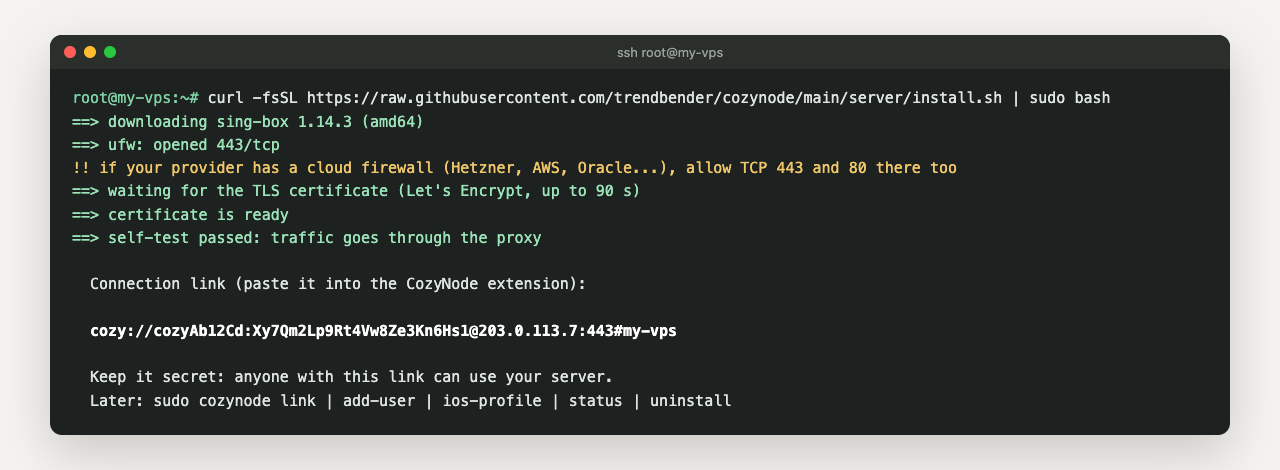
In about a minute the script downloads a pinned sing-box release and checks its sha256, creates a random login, gets a Let's Encrypt certificate for the server IP (it renews itself), opens the port in ufw, checks that traffic goes through and prints the connection link cozy://login:password@ip:port#name. The link is the only secret: do not post it in chats or tickets.
sudo cozynode link          # show the link again
sudo cozynode add-user      # a separate login for another person or device
sudo cozynode ios-profile   # profile for the sing-box app on a phone
sudo cozynode status        # service and certificate
sudo cozynode install       # update sing-box and the config, logins stay
sudo cozynode uninstall     # remove everything
A server that already runs websites
If nginx already uses ports 80 and 443, put the proxy on 8443 and forward only the certificate check from port 80, with your server's IP in server_name:
server {
    listen 80;
    server_name 203.0.113.7;
    location /.well-known/acme-challenge/ { proxy_pass http://127.0.0.1:18480; }
    location / { return 444; }
}
Write listen 80; without the IP: listen 203.0.113.7:80; would take port 80 of this address away from your other sites. Then reload nginx and install:
sudo nginx -t && sudo systemctl reload nginx
curl -fsSL https://raw.githubusercontent.com/trendbender/cozynode/main/server/install.sh | sudo bash -s -- --port 8443 --acme-http-port 184803. Connect Chrome
Install CozyNode from the Chrome Web Store. Until the listing is live, install it by hand:
- 1. Download
cozynode-<version>.zipfrom GitHub Releases and unzip it. - 2. Open
chrome://extensions, turn on Developer mode (top right), press Load unpacked and pick the unzipped folder.
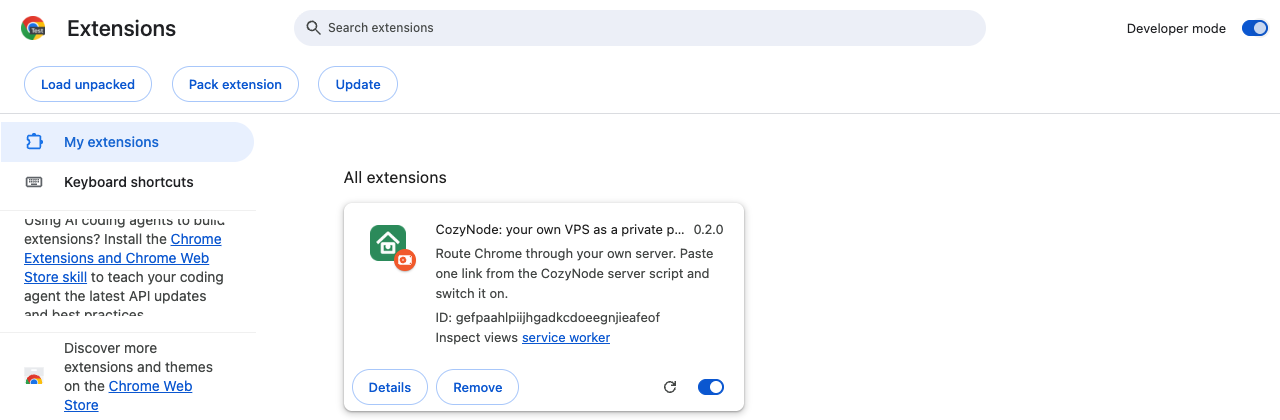
- 3. Pin the extension: the puzzle icon on the toolbar, then the pin next to CozyNode.
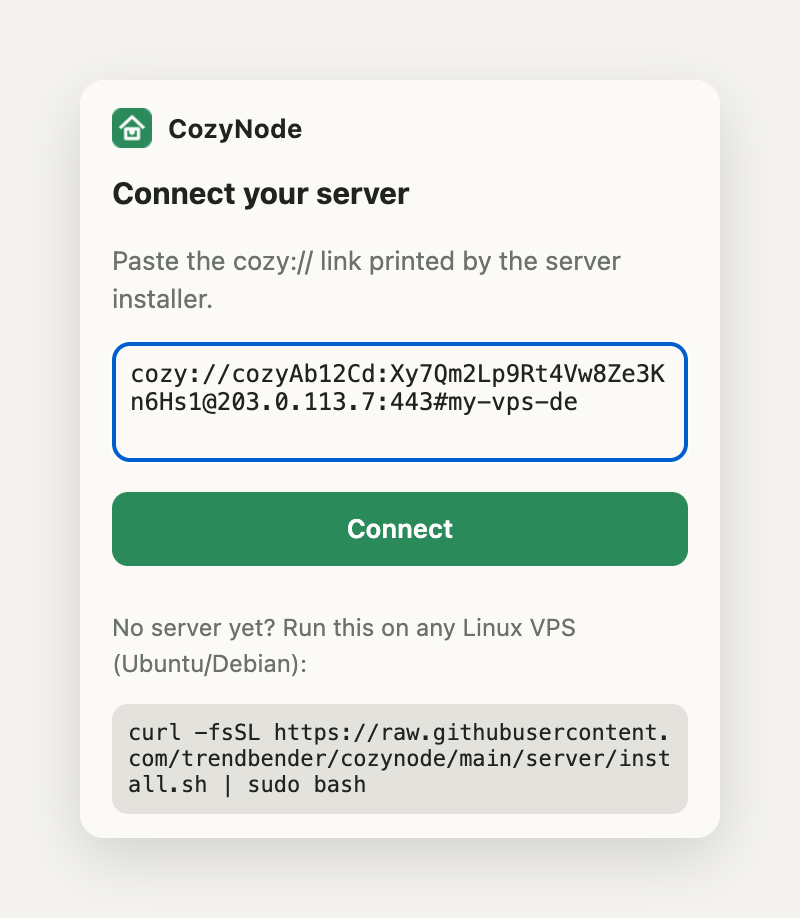
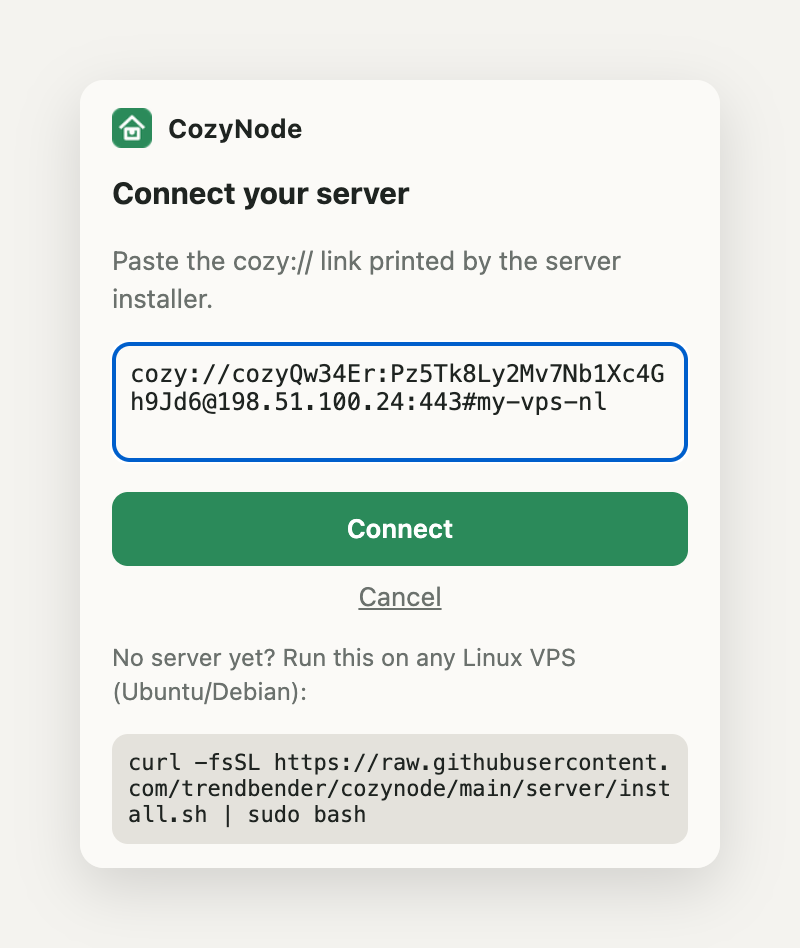
- 4. Click the CozyNode icon, paste the link from the server and press Connect.
- 5. The proxy is on. Under the server you see the IP and country that websites see now; Check connection runs this check again.
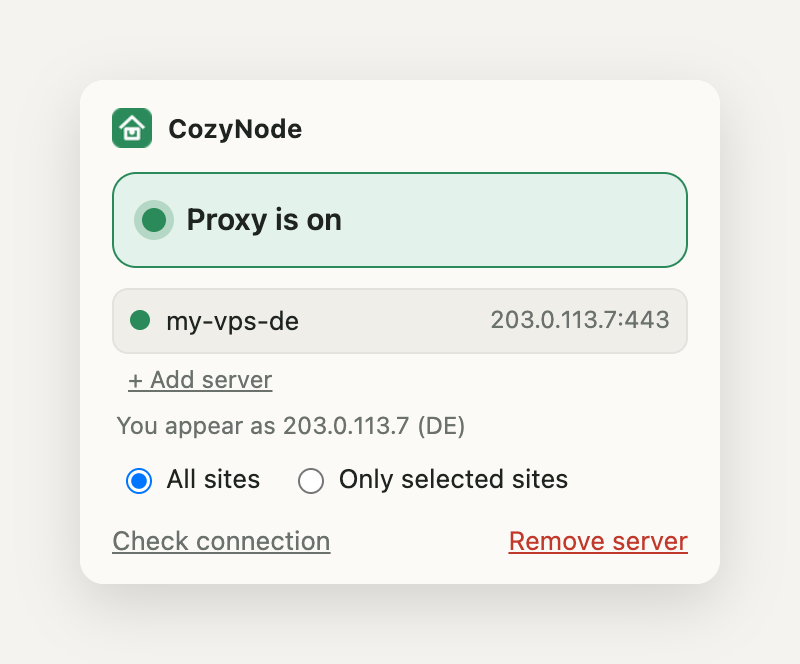
While the proxy is on, DNS is resolved on the server, WebRTC is limited to the proxy so browser calls do not reveal your real IP, and local addresses (localhost, 192.168.x.x, 10.x.x.x) go direct.
4. All sites or only some
All sites sends all Chrome traffic through the server. Only selected sites sends only the sites in the list; everything else goes direct at full speed. Type a domain and press +, or press Add example.com to add the site of the current tab. A domain covers its subdomains: example.com includes www.example.com.
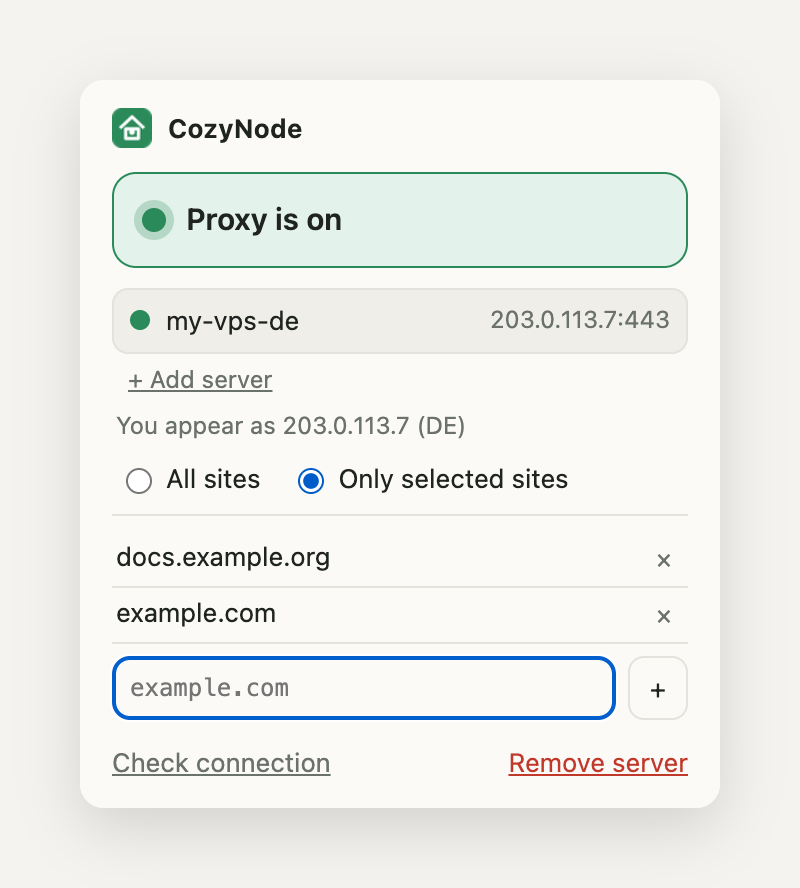
If a site in the list still does not open, it loads from another domain too (a CDN or an API). Add that domain: it is visible in Chrome DevTools, on the Network tab.
5. Several servers
Keep several servers, for example in different countries, and switch with one click. Install CozyNode on each server, then in the extension press + Add server, paste the next link and press Connect. Click a server in the list to switch: the check below shows the new IP and country at once.
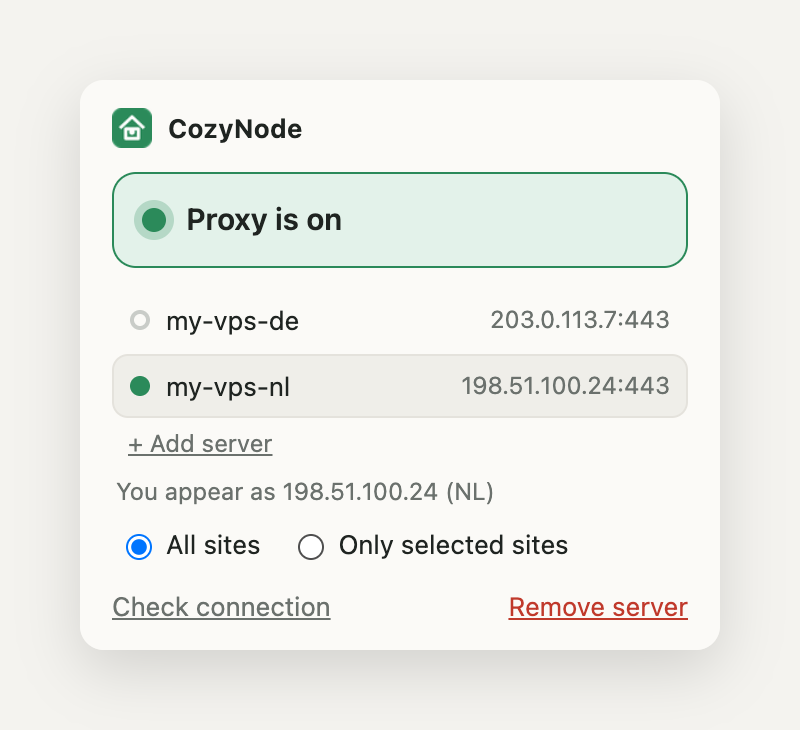
Remove server removes only the selected server. Pasting the same link again updates the entry instead of adding a duplicate.
6. iPhone and iPad
Chrome on a phone does not support extensions, so the whole device goes through the server with the free open-source sing-box app. Nothing changes on the server. All apps and browsers work and DNS goes through the server; UDP other than DNS (QUIC) is refused and apps fall back to TCP, so messenger calls that need UDP may not connect while the app is on.
- 1. Install sing-box MT from the App Store, the official sing-box client (iOS 15 or later).
- 2. Get the profile on your computer, in the Terminal:
ssh [email protected] 'cozynode ios-profile' > cozynode.json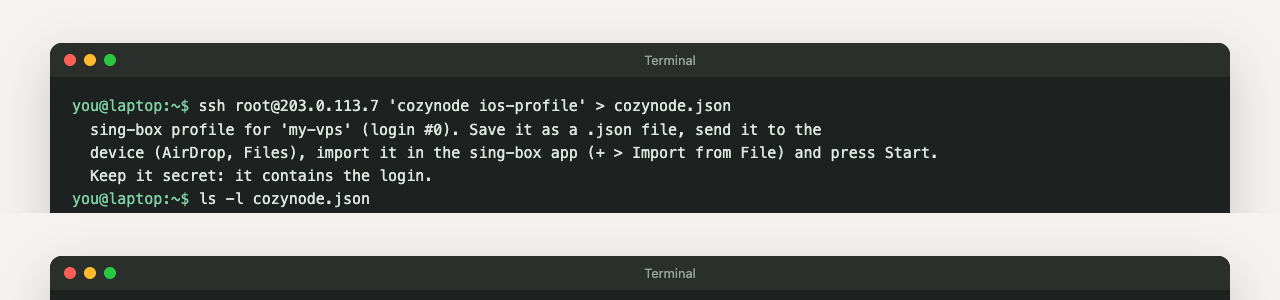
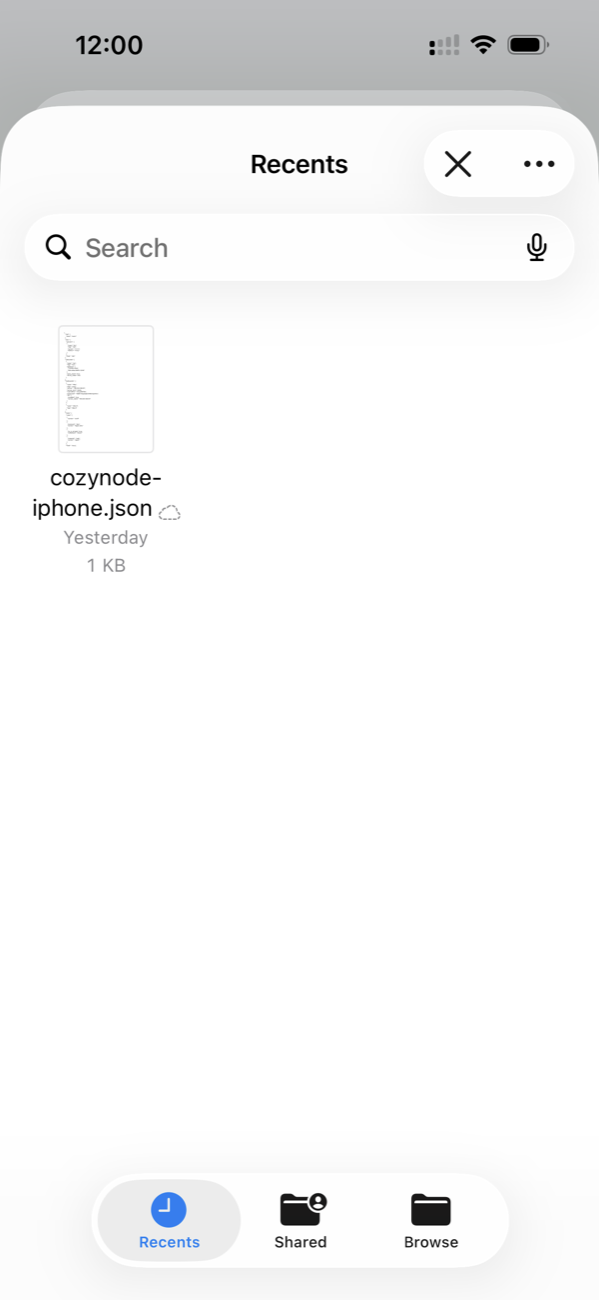
- 3. Move the file to the iPhone with AirDrop (it lands in Files › Downloads) or iCloud Drive. It contains your login: do not send it through chats or email.
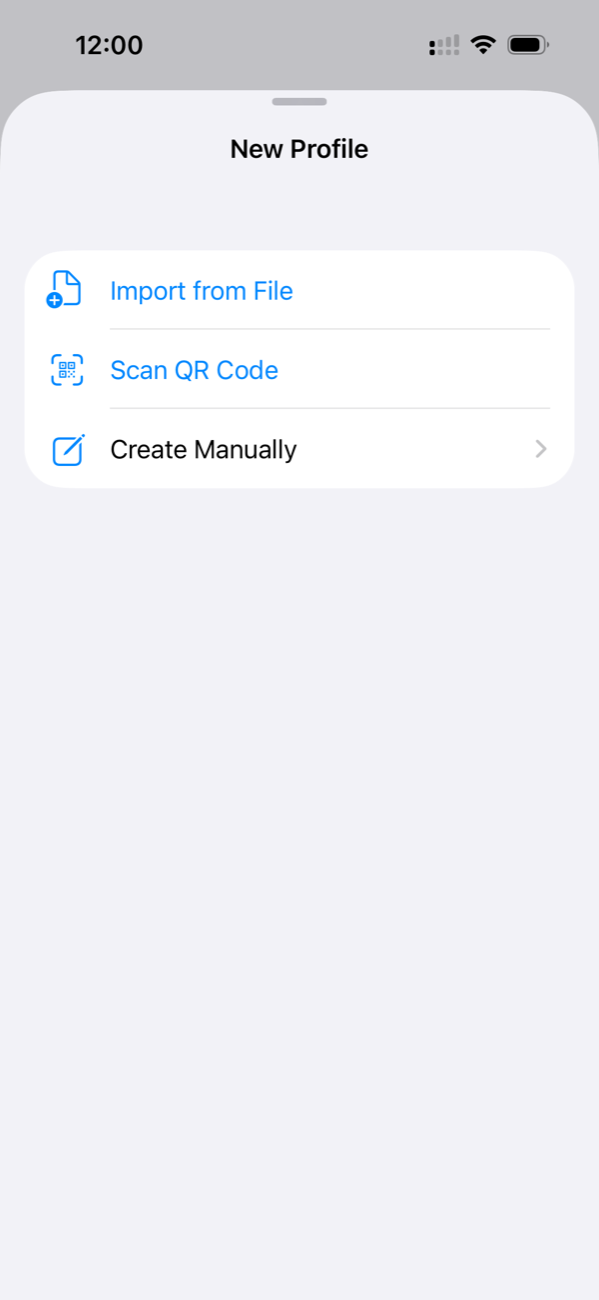
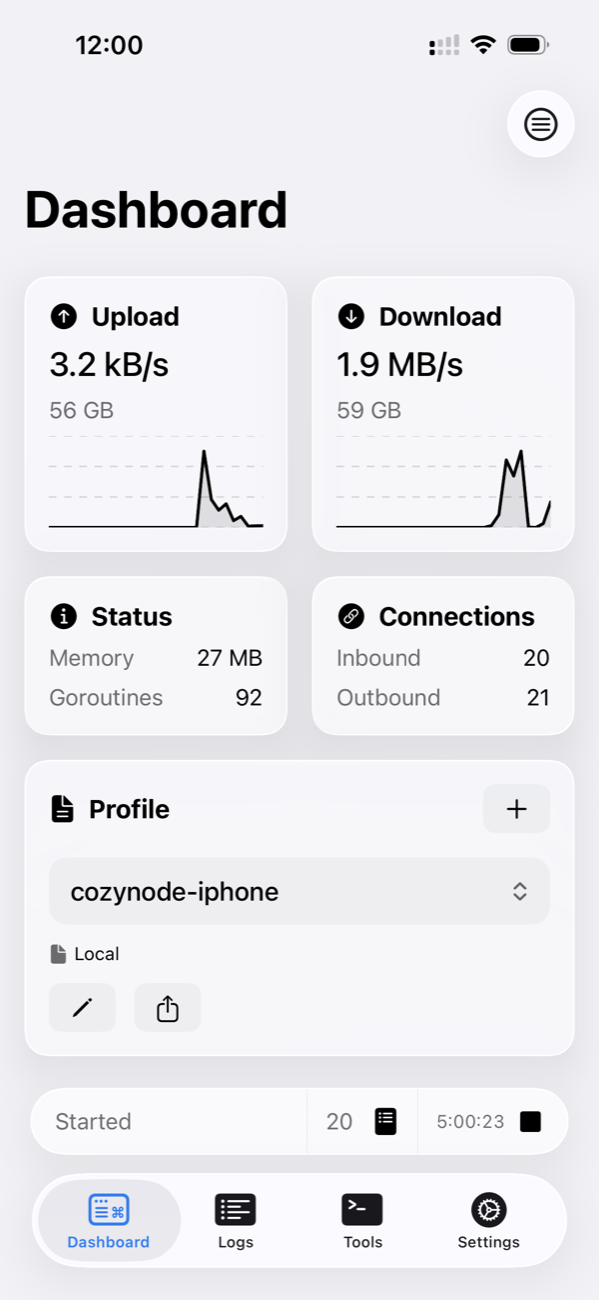
- 4. Open sing-box, on the Dashboard press + on the profile card, choose Import from File and pick
cozynode.json. Confirm the import. - 5. The first time, press Install Network Extension and allow the VPN configuration (iOS asks for your passcode). Then press Start: the bar at the bottom of the Dashboard shows Started with a stop button.
- 6. Open cloudflare.com/cdn-cgi/trace in Safari:
ip=andloc=must show your server.
Several servers: run the command for each server with its own file name, import each profile and switch with the profile selector on the Dashboard. A separate login for the phone: sudo cozynode add-user, then cozynode ios-profile 1.
7. Android
- 1. Install sing-box from Google Play, or the APK from GitHub Releases or F-Droid (Android 5.0 or later).
- 2. Get the profile on your computer with the same command as for iPhone. The profile is the same for iOS, Android and desktop sing-box.
- 3. Move the file to the phone with Quick Share, a USB cable or your own cloud drive, not through chats.
- 4. Open sing-box, go to Profiles, press +, choose Import from file, pick
cozynode.jsonand confirm with Import. - 5. On the Dashboard press Start and allow the VPN connection request.
- 6. Check with cloudflare.com/cdn-cgi/trace in any browser.
8. A login for every person and device
Give everyone their own login instead of sharing yours. All logins work at the same time.
sudo cozynode add-user       # prints a new link, login number 1, 2, ...
sudo cozynode link 1         # show the link of login 1 again
sudo cozynode ios-profile 1  # phone profile for login 1
To take access away, remove the person's entry from /etc/cozynode/users.json and run sudo cozynode install.
9. Troubleshooting
The extension says there is no connection through the server
Run sudo cozynode status on the server. If the service runs, the port is closed somewhere: check ufw status and the cloud firewall in your provider panel.
The server rejected the login
The link is outdated because the server was reinstalled or the login was removed. Get a fresh one with sudo cozynode link and add it again.
The installer waits for the certificate and gives up
Port 80 is not reachable from the internet. Open it in the cloud firewall, or forward only /.well-known/acme-challenge/ from nginx if a website already uses port 80.
A site opens without the proxy in the only selected sites mode
The site loads from other domains too, such as a CDN or an API. Add them to the list; they are visible in Chrome DevTools on the Network tab.
The phone app starts, but nothing opens
Check the server from a computer with the Cloudflare trace link. After reinstalling the server, create the phone profile again: the login has changed.
10. Update and remove
- Update the server:
sudo cozynode install(logins and links stay). - Remove from the server:
sudo cozynode uninstall. - Remove from Chrome: right-click the CozyNode icon, then Remove from Chrome. Chrome's proxy settings return to normal.
- Phone: delete the profile in the sing-box app, or the app itself.
The extension keeps your links only on your device and sends nothing to us: privacy policy. Source code and the same guide in English and Russian: GitHub.
Need a custom browser tool or internal automation?
We build extensions, server scripts and integrations for teams. Tell us what eats your team's time.
Get a free 4Queries audit